Caller Name Announcer for Headphones – Hear Incoming Call Alerts Hands-Free
When you are listening to music, exercising, travelling or working with headphones, checking your phone every time it rings can be inconvenient. Caller Name Announcer for Headphones can make incoming calls easier to recognize by providing spoken caller alerts through supported headphones or connected audio devices.
A caller name announcer generally uses available incoming-call information and text-to-speech technology. When a saved contact calls, a supported feature may speak the contact name aloud. This means you can know who is calling without immediately taking the phone out of your pocket or looking at the screen.
The feature can work differently depending on the smartphone, operating system, headphones and caller-announcement solution being used. Some phones provide built-in call-announcement options, while others may support third-party applications.
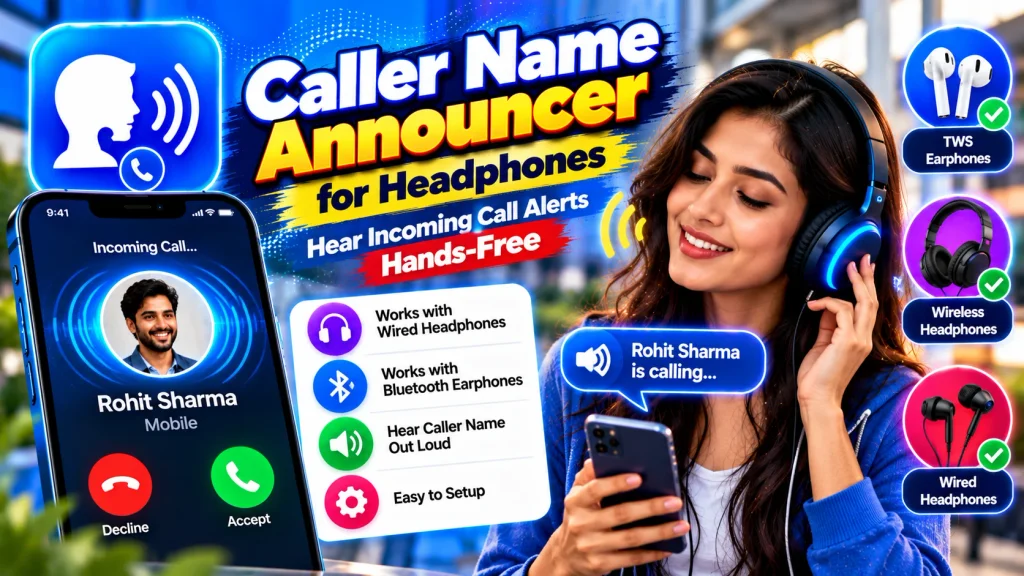
This guide explains how to hear incoming call alerts hands-free through headphones, how caller announcements work, and how to troubleshoot common audio problems.
Caller Name Announcer for Headphones – Quick Overview
| Feature | Details |
|---|---|
| Feature | Caller Name Announcement |
| Main Purpose | Hear Incoming Caller Alerts Hands-Free |
| Audio Output | Supported Headphones or Phone Audio |
| Saved Contacts | Can Announce Available Contact Names |
| Unknown Calls | Behavior Depends on App or Device |
| Wired Headphones | Support Varies by Device |
| Wireless Earbuds | Depends on Bluetooth and Phone Settings |
| Bluetooth Headsets | Support Depends on Configuration |
| Voice | Uses Supported Text-to-Speech Technology |
| Language | Depends on Available Speech Voices |
| Volume | Controlled Through Relevant Audio Settings |
| Android | Features Vary by Device and Version |
| iPhone | Uses Supported iOS Call Announcement Options |
| Permissions | Depend on App and Operating System |
| Privacy | Headphones Can Reduce Public Announcements |
What Is Caller Name Announcer for Headphones?
Caller Name Announcer for Headphones refers to a feature that provides spoken information about incoming calls while you are using compatible headphones, earbuds or another supported audio device.
Instead of hearing only a ringtone, you may hear the name associated with a saved contact.
For example, if your contact list contains a person named “Rahul Office,” the phone may announce that name when Rahul calls.
The exact wording and audio behavior vary.
Some devices may announce calls using built-in operating-system functionality. Other users may rely on a caller-announcer app.
Before installing an additional application, check whether your phone already provides the functionality you need.
How Does Caller Name Announcement Work With Headphones?
Caller announcements generally combine three elements:
Incoming-call information
Saved contact details
Text-to-speech technology
When a call arrives, the system checks the available information. If the number matches a saved contact, the corresponding name may be converted into speech.
The generated audio can then be routed through your headphones where supported.
This process happens automatically after the relevant feature has been enabled.
You normally do not need to unlock your phone or manually open the caller-announcer app each time a call arrives.
However, background operation and call-related access depend on the operating system and specific application.
Why Use Caller Announcements With Headphones?
The biggest benefit is convenience.
If your phone is inside a pocket or bag, a spoken caller alert can help you decide whether you need to respond.
It can be useful while:
Walking
Exercising
Working
Listening to music
Commuting
Doing household tasks
Using wireless earbuds
Keeping the phone away from your desk
Headphone announcements may also provide more privacy than playing caller names through the phone’s loudspeaker.
However, you should still use your phone responsibly and avoid interactions that distract you from traffic or other safety-sensitive activities.
Check for Built-In Call Announcements First
Many smartphones provide various accessibility, call or voice-assistance features.
Before installing a third-party Caller Name Announcer, search your current phone settings for options related to announcing calls or caller information.
Built-in features can be convenient because you may not need to provide additional access to another application.
The exact menu depends on your device.
Android phones can differ between manufacturers, while iPhone uses Apple’s supported call-announcement settings.
Because software interfaces change, follow the current settings displayed on your device rather than relying on an old menu path.
How to Enable Caller Name Announcer for Headphones
If your phone or selected app supports headphone announcements, the general setup is simple.
First, connect your headphones or earbuds.
Open the relevant call-announcement or caller-announcer settings.
Enable incoming-call voice alerts.
Select the available option for headphones if one is provided.
Review the voice and language settings.
Adjust the announcement volume.
Ask a trusted contact to call you for testing.
Listen to where the announcement plays.
If the voice comes from the phone speaker instead of your headphones, review the audio-output and Bluetooth settings.
Not every device provides manual audio-routing controls for caller announcements.
Caller Announcer With Wired Headphones
Wired headphones can provide a simple audio connection, although compatibility depends on your phone.
Connect the headphones and confirm that ordinary audio plays correctly.
Then test an incoming call.
If caller announcements are enabled, listen for the spoken caller information.
If the ringtone or announcement continues to play through the phone speaker, check your current audio and call settings.
Some smartphones may treat call audio, media audio and notification audio differently.
Therefore, successful music playback through headphones does not always guarantee that every caller-announcement feature will use the same output.
Caller Announcer With Wireless Earbuds
Wireless earbuds use Bluetooth, which introduces additional audio settings.
First, pair your earbuds with the smartphone.
Confirm that they are connected.
Check whether call audio is supported and enabled for the device.
Turn on the available caller-announcement feature.
Test an incoming call.
If music works but the announcement does not, the Bluetooth connection may be configured differently for media and call audio.
Review the connected-device settings.
Wireless-earbud behavior can also vary by brand, phone model and operating system.
Keep both devices appropriately updated if you experience compatibility problems.
Caller Announcer With Bluetooth Headsets
Bluetooth headsets are commonly used for hands-free communication.
A supported caller-announcement setup may speak incoming caller information through the headset before or while the phone rings.
To configure it, pair the headset and confirm that call audio works normally.
Then enable caller announcements and perform a test.
If the feature fails, disconnect and reconnect the headset.
You can also restart Bluetooth or the phone if necessary.
When using a headset while driving, configure and test everything before beginning your journey. Do not navigate complicated settings while the vehicle is moving.
Saved Contact Name Announcements
Saved contacts generally provide the most reliable source for caller names.
If your phone has a number stored under “Anita,” a supported announcer may speak “Anita” when that number calls.
If the wrong name is announced, inspect your contacts.
Look for:
Incorrect contact names
Duplicate entries
Old phone numbers
Unusual abbreviations
Multiple contacts sharing the same number
Contact spelling can also affect pronunciation.
Correcting the contact information may solve the problem without changing the caller-announcer application.
What Happens With Unknown Callers?
If an incoming number is not stored in your contacts, the announcement depends on your device or app.
It may announce an unknown caller.
It may speak the number.
It may use other available caller information.
Or it may provide only a ringtone.
Do not assume that a caller-announcer app can identify every unknown number.
Even when an unknown caller name is provided, the information is not guaranteed proof of identity.
Phone numbers can be spoofed, reassigned or associated with outdated information.
Treat unexpected financial or account-related calls carefully.
Adjusting Voice and Language
Caller-name announcements commonly rely on text-to-speech technology.
Your device may provide different voices and languages.
Choose a voice that is easy to understand through your headphones.
If you have contacts saved in Bengali, Hindi, Tamil, Telugu, Kannada, Malayalam or another language, check whether your text-to-speech system supports the relevant language.
Pronunciation can depend on:
Selected language
Contact spelling
Written script
Speech engine
Selected voice
Speech speed
Test several contact names before deciding which voice works best.
Adjusting Announcement Volume
Headphone volume deserves special attention because excessively loud audio can be uncomfortable.
Start with a moderate level.
Test a call from a saved contact.
Increase or decrease the volume gradually.
The relevant control can depend on how your phone routes caller announcements.
It may be linked to ringtone, call, media or another audio channel.
Avoid setting the volume much higher simply because you are in a noisy location.
Protecting your hearing is more important than making caller announcements extremely loud.
Caller Announcer While Listening to Music
When an incoming call arrives while music is playing, the device may temporarily lower, pause or otherwise manage media audio so that the call alert can be heard.
Exact behavior depends on your phone, headphones and applications.
After the call is handled or dismissed, media playback may resume according to the device’s normal behavior.
If announcements cannot be heard over music, review your call and audio settings.
Do not install unknown “volume booster” applications solely to make caller names louder, as unnecessary audio-modification apps may create privacy or device-performance concerns.
Privacy Benefits of Headphone Announcements
Headphones can provide a more private caller-announcement experience.
If the phone speaks caller names through its external speaker, people nearby may hear personal information.
This can be uncomfortable in:
Offices
Meetings
Public transport
Libraries
Shared rooms
Waiting areas
Headphone-based announcements can reduce this exposure when audio is correctly routed to the connected device.
However, always test the configuration. Do not assume the announcement is private until you have confirmed that it is actually playing through your headphones.
Permissions and Security
Third-party caller-announcement apps may request permissions needed to detect calls or access saved contact information.
Review every permission carefully.
Use reputable apps from trusted sources.
Avoid modified APKs or apps promising “secret caller information.”
A caller-name announcer does not need your banking PIN, UPI PIN, OTP or account password.
Never provide such information to an app or caller.
If an application requests unrelated sensitive access without explaining why, reconsider whether you should use it.
Caller Name Announcer for Headphones Not Working
If you cannot hear announcements, try these basic checks:
Confirm the announcement feature is enabled.
Check that headphones are connected.
Test normal audio playback.
Review call-audio settings.
Check Bluetooth settings for wireless devices.
Review required app permissions.
Increase the relevant volume slightly.
Check text-to-speech settings.
Restart the caller-announcer app.
Reconnect the headphones.
Restart your phone.
Update official software when appropriate.
If the problem occurs only with one contact, check that person’s saved contact information.
Android and iPhone Differences
Caller-announcement behavior differs between Android and iPhone.
Android functionality can also vary between manufacturers and phone apps.
iPhone uses supported iOS call-announcement and audio-routing functionality.
Therefore, a tutorial made for one platform may not work on another.
Use the settings available on your own device.
If your smartphone already provides the required caller-announcement functionality, a separate third-party application may not be necessary.
Frequently Asked Questions (FAQ)
1. What is Caller Name Announcer for Headphones?
It is a feature that can provide spoken incoming-caller information through supported headphones or connected audio devices.
2. Can I hear saved contact names through headphones?
Yes, supported caller-announcement features can speak available saved contact names.
3. Does it work with wireless earbuds?
It can work with compatible Bluetooth earbuds depending on your phone and audio configuration.
4. Does it work with wired headphones?
It may work with supported wired headphones, although audio routing varies by device.
5. Can caller names be announced while music is playing?
Yes, on supported configurations, the phone may manage media audio to provide an incoming-call alert.
6. Can I change the caller-announcement voice?
You may be able to select another supported text-to-speech voice.
7. Can I change the announcement language?
Yes, where your phone or speech engine provides the required language.
8. Why does the caller name play through my phone speaker?
Your device’s audio routing or caller-announcement settings may be directing the sound to the speaker.
9. Why can I hear music but not caller announcements?
Media audio and call-related audio can use different settings. Check call audio, announcement settings and Bluetooth configuration.
10. Does a spoken caller name confirm the caller’s identity?
No. Caller announcements use available information and should not be treated as verified proof of identity.
Conclusion
Caller Name Announcer for Headphones can make incoming calls easier to recognize when your phone is inside a pocket, bag or otherwise out of reach. With a properly configured setup, supported devices can speak available caller information through wired headphones, wireless earbuds or Bluetooth headsets.
Before installing another app, check whether your smartphone already provides a built-in call-announcement feature. If you use a third-party app, choose a reputable option and review its permissions carefully.
After enabling the feature, test it with saved contacts and confirm that the announcement actually plays through your headphones. You can then adjust the voice, language, speech speed and volume for a more comfortable experience.
Headphones can also improve privacy by preventing caller names from being announced through the phone’s external speaker. However, audio routing differs between devices, so always test your configuration.
By setting up hands-free incoming call alerts carefully, you can recognize callers more conveniently while maintaining appropriate privacy, security and safe phone-use habits.
Disclaimer: Caller-name announcements, headphone audio routing, Bluetooth support, text-to-speech voices, languages and available settings vary by smartphone, operating system, headphones and application. Features and menu locations can change after software updates.