Caller Name Announcer Not Working – How to Fix Voice Alerts and Check Permissions
A Caller Name Announcer can be convenient when you want to know who is calling without immediately checking your phone. But sometimes the voice alert suddenly stops, saved contact names are not announced, or the feature works only for certain calls. If your Caller Name Announcer is not working, the problem may involve permissions, text-to-speech settings, audio volume, contacts, background restrictions or device configuration.
The exact troubleshooting process depends on whether you use a built-in phone feature or a third-party Caller Name Announcer app. Android and iPhone can also handle call announcements differently.
Fortunately, many common problems can be checked without reinstalling everything or changing complicated system settings.
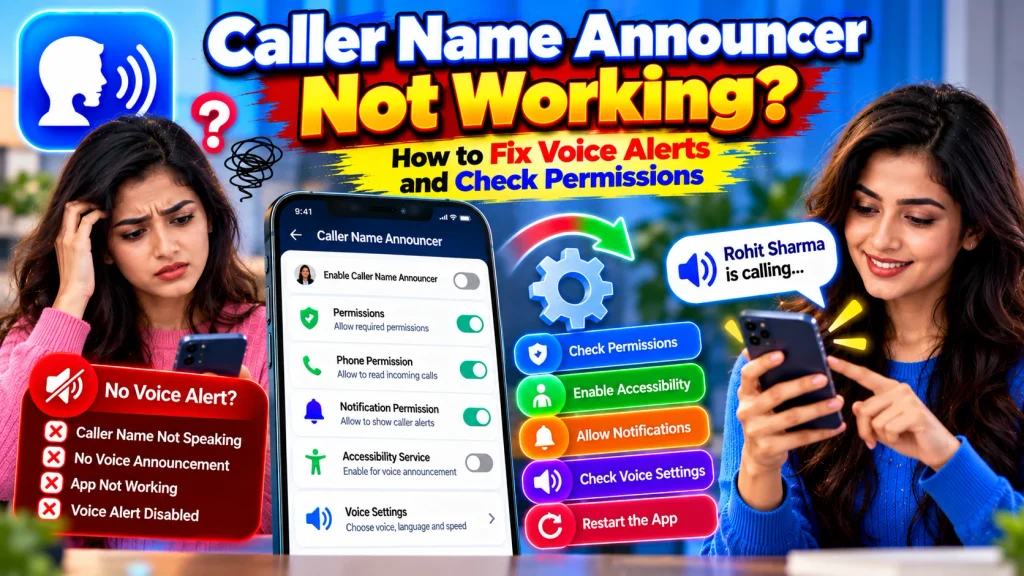
This guide explains how to fix Caller Name Announcer voice alerts, check required permissions, troubleshoot text-to-speech, test headphones and Bluetooth, and identify common reasons caller names are not being announced.
Caller Name Announcer Not Working – Quick Overview
| Problem | What to Check |
|---|---|
| No Voice Alert | Announcement Feature and Volume |
| Contact Name Not Spoken | Saved Contact Information |
| App Not Detecting Calls | Relevant Permissions |
| No Speech | Text-to-Speech Settings |
| Very Low Voice | Audio Volume |
| Wrong Pronunciation | Language and Voice Settings |
| Headphones Not Working | Audio Routing |
| Bluetooth Issue | Call Audio and Connection |
| Works Only Sometimes | Background/App Restrictions |
| Unknown Calls Not Announced | App Feature Availability |
| After App Update | Recheck Settings and Permissions |
| Android Problem | App and System Settings |
| iPhone Problem | Supported iOS Announcement Settings |
| One Contact Fails | Contact Name and Number |
| All Calls Fail | General Setup and Compatibility |
Why Is Caller Name Announcer Not Working?
There is no single reason a caller announcement can stop working.
A permission may have been disabled, the announcement option may be turned off, or the phone’s text-to-speech service may not be working correctly.
Software updates can also change settings or app behavior.
Common causes include:
Disabled caller announcements
Missing app permissions
Incorrect contact information
Low or muted volume
Text-to-speech problems
Wrong language settings
Bluetooth audio configuration
Background restrictions
App compatibility problems
Outdated software
Do Not Disturb or sound-mode behavior
Start with basic checks before making major changes to your device.
Check Whether Caller Announcements Are Enabled
The first step is to confirm that the feature itself is enabled.
Open your Caller Name Announcer app or your phone’s built-in call-announcement settings.
Look for the option responsible for announcing incoming calls.
Make sure it is turned on.
If there are separate controls for headphones, Bluetooth or specific situations, review those settings too.
Some devices may provide choices controlling when calls are announced.
The exact options vary between operating systems and applications.
If you recently updated the app or phone, check the settings again because the interface or configuration may have changed.
Check Caller Name Announcer Permissions
A third-party caller-announcement app may need certain permissions to provide its advertised functionality.
Open your phone settings.
Find the application.
Open its permissions section.
Review which permissions are currently allowed or denied.
Depending on the app and operating system, relevant permissions may involve contacts, phone-related functionality, notifications or other supported access.
Do not blindly enable every permission.
Read what the application is requesting and determine whether it makes sense for the feature.
If you previously denied a necessary permission, restoring it may fix the caller announcement.
Check Contacts Permission
If incoming calls are detected but contact names are not spoken, review contact access.
A Caller Name Announcer may need appropriate access to match an incoming number with a saved contact.
If contacts permission is disabled, the app may be unable to retrieve the saved name.
After changing the permission, test the feature using a trusted contact.
If it still fails, open your phone’s Contacts app and confirm that the number is saved correctly.
A permission alone cannot solve a problem caused by incorrect contact data.
Check the Saved Phone Number
Sometimes the problem affects only one or two callers.
In this situation, inspect the contact information.
Check whether:
The number is correct.
The country code is appropriate.
Duplicate contacts exist.
An old number is saved.
The name field contains unusual symbols.
The same number appears under multiple names.
Try calling your phone from another correctly saved contact.
If other names are announced normally, the problem may be specific to the affected contact rather than the Caller Name Announcer itself.
Check Text-to-Speech Settings
Caller Name Announcer features often depend on text-to-speech (TTS) technology.
If the speech engine is disabled, incorrectly configured or missing necessary language resources, you may receive a call without hearing the name.
Open the relevant text-to-speech settings on your device.
Check the selected speech engine, voice and language.
Use a speech preview or test option if your device provides one.
If the test voice does not work, troubleshoot the text-to-speech system before focusing on the caller-announcement app.
The exact TTS settings vary between Android devices and operating-system versions.
Check Voice Language
A language mismatch can cause poor pronunciation or, in some configurations, problems producing the expected announcement.
Select a language supported by your current text-to-speech service.
If most contacts are written in English, test an English voice.
If names are written in Bengali, Hindi, Tamil, Telugu, Kannada, Malayalam or another script, check whether the selected speech system supports that language.
Not every voice supports every language.
Additional speech data may be required for some languages.
Test multiple contact names after changing the voice or language.
Increase the Relevant Audio Volume
If the app appears to work but you cannot hear anything, the problem may simply be volume.
Caller announcements may use different audio channels depending on the phone and application.
Check your ringtone, call, notification and media volume as appropriate.
Increase the level gradually and test again.
Avoid immediately setting every volume control to maximum.
If you use headphones, disconnect them temporarily and test whether the voice comes through the phone speaker.
This can help identify an audio-routing problem.
Check Silent Mode and Do Not Disturb
Silent mode, Focus modes or Do Not Disturb settings can influence call-related alerts depending on your device configuration.
Temporarily review these settings when troubleshooting.
Turn off the relevant mode if appropriate and test an incoming call.
If the announcement begins working, review your phone’s current sound-mode settings to determine which option affected it.
Do not assume every device treats Caller Name Announcer audio in exactly the same way.
Some phones may continue providing certain alerts while suppressing others.
Caller Name Announcer Not Working With Headphones
If announcements work through the phone speaker but disappear when headphones are connected, the issue is probably related to audio routing or headphone configuration.
Reconnect the headphones.
Play normal audio to confirm they work.
Then test an incoming call.
For wireless earbuds, confirm that the Bluetooth device supports and is configured for the appropriate call audio.
If music works but incoming-call announcements do not, remember that media audio and call-related audio can use different device settings.
Review your connected-device options.
Caller Name Announcer Not Working With Bluetooth
Bluetooth problems are another common reason voice alerts are not heard.
First, confirm that the Bluetooth device is connected.
Then check whether call audio is enabled where your phone provides such a control.
Disconnect and reconnect the device.
If necessary, restart Bluetooth.
Test an incoming call again.
If the problem continues, temporarily disconnect Bluetooth and test through the phone speaker.
If announcements work normally without Bluetooth, you have narrowed the problem to the Bluetooth or audio-routing configuration.
Perform these tests while stationary and in a safe environment.
Check Background App Restrictions
Some Android devices manage background activity aggressively to save battery.
If you use a third-party Caller Name Announcer, background restrictions may affect how reliably it operates.
Review the app’s battery or background settings using your phone’s current system controls.
Do not disable all battery optimization across your device.
Instead, understand whether the specific caller-announcement app needs background operation for its intended functionality.
Battery-management menus vary significantly by manufacturer and Android version.
If you make a change, test the app and observe whether reliability improves.
Restart the App and Phone
A simple restart can resolve temporary software problems.
Close the Caller Name Announcer application and reopen it.
If that does not help, restart your phone.
Then test another incoming call.
Restarting can refresh temporary system processes, Bluetooth connections and text-to-speech services.
If the issue started immediately after a software update, also review the app’s current settings because permissions or behavior may have changed.
Do not repeatedly reinstall the app before checking simpler causes such as volume, permissions and TTS configuration.
Update the Official App
If you use a third-party Caller Name Announcer, check whether an official update is available through your trusted application store.
Updates may include compatibility improvements and bug fixes.
However, menu locations or available features can also change after an update.
Review your settings afterward.
Avoid downloading an unofficial APK because your current version appears to have a problem.
Modified applications can request unnecessary permissions or create security risks.
If a feature no longer works after an official update, consult the app developer’s current support information where available.
Clear Cache or Reconfigure Carefully
On supported Android devices, basic app-management options may include clearing temporary cache data.
This can sometimes help with temporary app problems.
Be careful with options that erase app data, because they may reset settings and require you to configure the application again.
Before resetting anything, note your current configuration.
If you reinstall the app, download it only from a trusted source and review permissions again during setup.
A complete reset should generally come after simpler troubleshooting steps rather than being the first action.
Android and iPhone Differences
Caller-announcement troubleshooting is not identical on Android and iPhone.
Android behavior can vary by manufacturer, phone application, Android version and third-party app.
iPhone uses supported iOS call-announcement features and system controls, while third-party applications operate within Apple’s platform rules.
Therefore, do not follow an Android-specific permission tutorial on an iPhone or vice versa.
Use the current controls available on your own device.
If your phone already has a built-in call-announcement feature, consider testing it separately from a third-party app.
Frequently Asked Questions (FAQ)
1. Why is my Caller Name Announcer not working?
Common causes include disabled announcements, missing permissions, low volume, text-to-speech problems, incorrect contacts or audio-routing issues.
2. Which permissions should I check?
Review the permissions requested by your specific app, particularly those relevant to its call and contact features.
3. Why does the phone ring but not announce a name?
Check caller-announcement settings, contacts access, text-to-speech configuration and audio volume.
4. Why does it work for some contacts but not others?
The affected contacts may contain incorrect numbers, duplicate entries or unusual name formatting.
5. Why is there no voice through my headphones?
Check headphone connectivity and audio routing, and test whether announcements work through the phone speaker.
6. Why does music work over Bluetooth but caller alerts do not?
Media and call-related audio may use different Bluetooth settings. Review the connected device’s call-audio configuration.
7. Can battery settings stop Caller Name Announcer?
On some Android devices, restrictive background management may affect third-party app operation.
8. Should I reinstall the app immediately?
No. First check settings, permissions, contacts, volume, TTS and audio connections.
9. Why is the caller name pronounced incorrectly?
The selected text-to-speech language, voice and contact spelling can affect pronunciation.
10. Should I install a modified APK if the feature stops working?
No. Use the official app from a trusted source and avoid unofficial modified APKs.
Conclusion
If your Caller Name Announcer is not working, begin with the simplest checks. Confirm that incoming-call voice alerts are enabled, review the relevant permissions and make sure the contact information is saved correctly.
Next, test your phone’s text-to-speech system and verify that the selected voice and language are functioning. Check the relevant audio volume and temporarily review Silent, Focus or Do Not Disturb settings if necessary.
For headphone or Bluetooth problems, test announcements through the phone speaker first. This can help determine whether the issue involves the caller-announcement feature itself or audio routing to the connected device.
Android users may also need to review app-specific background or battery restrictions when using a third-party caller-announcement application.
Avoid changing many settings simultaneously. Test the feature after each adjustment so you can identify what actually solved the problem.
By systematically checking Caller Name Announcer permissions, voice alerts, text-to-speech settings, contacts and audio configuration, you can resolve many common announcement problems and restore a more convenient hands-free incoming-call experience.
Disclaimer: Caller Name Announcer functionality, permissions, background behavior, text-to-speech settings, Bluetooth controls and troubleshooting options vary by application, smartphone manufacturer, operating system and software version. Menu names and available settings can change after updates.