Caller Name Announcer Settings – Adjust Voice, Language and Announcement Speed
A caller name announcement feature can help you recognize incoming calls without immediately looking at your phone. However, the default voice may be too fast, difficult to understand or unsuitable for names written in a particular language. Reviewing Caller Name Announcer Settings can help you adjust the voice, language, announcement speed and other available preferences for a more comfortable experience.
Caller announcement generally works by combining incoming-call information with text-to-speech technology. When a saved contact calls, the phone or supported app may convert the contact name into spoken audio. The pronunciation and speed can depend on your selected text-to-speech voice, language and speech-rate settings.
The exact options vary between smartphones, operating systems and caller-announcer applications. Some settings may be available directly inside the app, while others are controlled through Android or iOS.
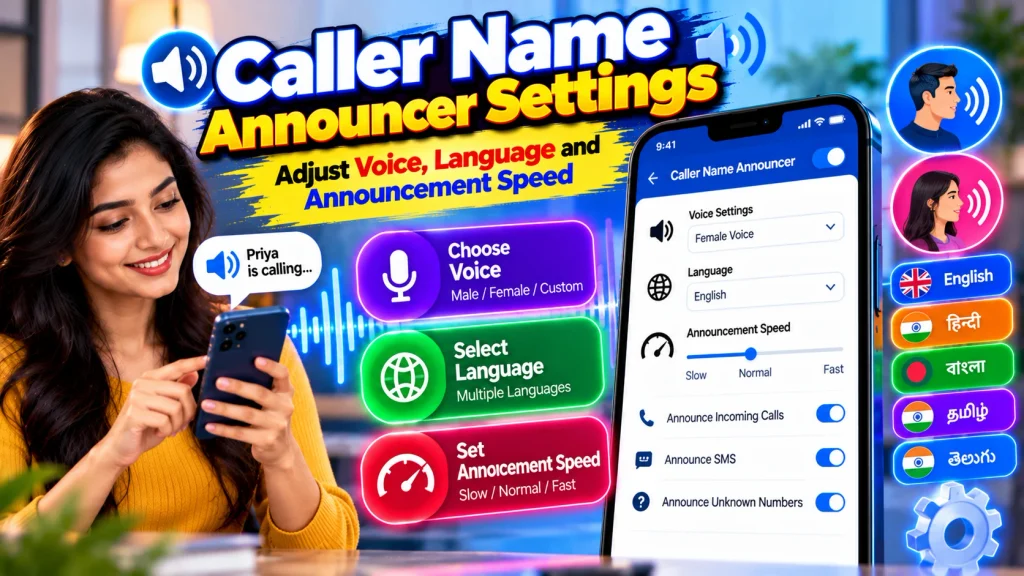
This guide explains how to adjust Caller Name Announcer voice, language and announcement speed, along with volume, pronunciation and audio-output settings.
Caller Name Announcer Settings – Quick Overview
| Setting | Details |
|---|---|
| Feature | Caller Name Announcement |
| Voice | Depends on Available Text-to-Speech Voices |
| Language | Depends on Device and Speech Support |
| Announcement Speed | Adjustable on Supported Systems |
| Speech Rate | Controls How Fast Names Are Spoken |
| Pitch | May Be Adjustable on Some Devices |
| Volume | Depends on Device Audio Controls |
| Contact Names | Uses Available Saved Contact Information |
| Unknown Calls | Announcement Behavior Varies |
| Headphones | Audio Routing Depends on Device |
| Bluetooth | Support Depends on Configuration |
| Repetition | Available in Some Apps |
| Android | Settings Vary by Device and App |
| iPhone | Uses Supported iOS Options |
| Privacy | Spoken Caller Information May Be Heard Nearby |
What Are Caller Name Announcer Settings?
Caller Name Announcer Settings are the controls used to customize how incoming caller information is spoken.
Depending on the phone or app, these controls may include:
Voice selection
Language
Speech rate
Pitch
Volume
Announcement repetition
Headphone behavior
Bluetooth behavior
Unknown-caller announcements
The exact combination of options is not universal.
A dedicated caller-announcer application may provide controls that are different from those built into your phone.
Likewise, a text-to-speech setting changed at the operating-system level can potentially affect other apps that use the same speech engine.
Review the description of each setting before changing it.
How Caller Name Announcer Voice Works
Caller announcement commonly relies on text-to-speech, often shortened to TTS.
Text-to-speech technology converts written information into spoken audio.
Suppose you save a contact as “Rahul Office.” When that number calls, a supported caller-announcement feature can send the saved contact name to the text-to-speech system, which then speaks it aloud.
The final sound depends on factors such as:
Selected voice
Language
Contact spelling
Speech rate
Pronunciation capabilities
Device settings
Because the system is reading text rather than playing a recording of the person’s actual voice, pronunciation may occasionally sound unnatural.
How to Change Caller Announcer Voice
If your device or app provides multiple text-to-speech voices, you may be able to select one that sounds clearer.
Open the relevant caller-announcement or text-to-speech settings.
Look for a voice-selection option.
Review the available voices.
Select the one you prefer.
Test the voice where possible.
Some devices may require additional voice data before a particular voice becomes available.
Voice names and options vary by operating system, language and installed speech service.
If you cannot find voice selection inside the caller-announcer app, check your phone’s text-to-speech settings because the application may use the system’s default voice.
How to Change Caller Announcer Language
Choosing the correct language can improve the pronunciation of saved contact names.
Open the available text-to-speech or caller-announcement language settings.
Select a supported language that best matches your contact names.
Test several calls or use a speech preview where available.
Users in India may want support for languages such as:
English
Hindi
Bengali
Tamil
Telugu
Kannada
Malayalam
Marathi
Gujarati
Other supported languages
Availability depends on the device and speech engine.
Do not assume that every caller-announcer application supports every Indian language.
Some language packs or voices may also need to be installed separately.
Contact Name Language and Pronunciation
The way a contact name is written can influence how it is pronounced.
For example, a Bengali name written in Bengali script may be handled differently from the same name written with English letters.
Similarly, abbreviations and unusual spellings can confuse a text-to-speech system.
If one particular name sounds incorrect, check the contact entry.
You may be able to improve pronunciation by using clearer spelling while still keeping the contact recognizable.
However, changing the entire phone language solely to fix one contact may not be necessary.
Test the available TTS voices and language options first.
How to Adjust Announcement Speed
If caller names are spoken too quickly or too slowly, look for the speech rate, speaking rate or similar control.
Reduce the rate if announcements are difficult to understand.
Increase it if the voice feels unnecessarily slow.
Make small adjustments and test the result.
An extremely fast rate can make names difficult to recognize, particularly long names.
An extremely slow rate can cause the announcement to take too long while the phone continues ringing.
The ideal setting is one that allows you to understand the caller’s name quickly and comfortably.
Not every app provides its own speed control, so you may need to use your phone’s TTS settings.
What Is Speech Rate?
Speech rate determines how quickly the text-to-speech voice reads information.
It does not change your phone’s ringtone speed or the speed of the incoming call itself.
For caller announcements, a moderate speech rate is usually easier to understand.
The best rate depends on your hearing preference, language and the length of your saved contact names.
If your caller-announcement app uses the phone’s system text-to-speech engine, changing the system speech rate may also affect spoken content in other supported applications.
Test other accessibility or voice features after making major changes.
Adjusting Voice Pitch
Some text-to-speech systems may provide a pitch control.
Pitch affects how high or low the generated voice sounds.
It is different from volume.
Changing pitch generally does not make an announcement louder.
If the default voice sounds uncomfortable, you can experiment with available pitch settings where supported.
Avoid extreme adjustments that make names harder to understand.
Some caller-announcement apps may not expose pitch controls at all.
In that case, use the available voice choices rather than looking for unofficial tools to modify the speech engine.
Adjusting Caller Announcement Volume
Voice announcements should be loud enough to hear but not unnecessarily disruptive.
Depending on your device and application, announcement volume may be connected to ringtone, media, notification or another audio setting.
Test the feature using a known contact.
Adjust the relevant volume gradually.
Remember that high volume can create a privacy issue because people nearby may hear the caller’s name.
This is particularly important in offices, meetings, public transport or shared spaces.
If you need privacy, consider using headphones or disabling announcements in certain situations where supported.
Repeat Caller Name Announcements
Some caller-announcer apps may offer an option to repeat the caller’s name.
For example, the name might be spoken more than once while the phone rings.
This can be useful if you miss the first announcement.
However, repeated announcements can also become distracting.
Review the available repetition controls and select a frequency that is comfortable.
If the application does not provide repetition settings, do not assume that the feature can be added through your phone’s general text-to-speech menu.
App-specific functions depend on what the developer has implemented.
Settings for Unknown Callers
Unknown callers may be handled differently from saved contacts.
Depending on the app, it may:
Announce an unknown caller.
Speak the phone number.
Provide available caller information.
Use another configured alert.
Avoid an announcement.
Check the settings for unknown-number behavior.
If you do not want phone numbers spoken aloud for privacy reasons, choose another available option where supported.
Remember that hearing a name for an unknown number does not prove the caller’s identity.
Treat unfamiliar calls carefully regardless of what the announcement says.
Caller Announcer Settings With Headphones
Headphones can make caller announcements more private.
Connect your headphones and test an incoming call from a known contact.
Check whether the voice is played through the headphones or phone speaker.
Audio routing depends on your device, operating system and app.
Some phones or applications may provide controls for when announcements occur, such as only when headphones are connected.
If this option is available, it can be useful when you do not want caller names announced publicly.
Keep headphone volume at a safe listening level.
Caller Announcer Settings With Bluetooth
Bluetooth earbuds, headphones and compatible vehicle systems may also receive caller announcements depending on your configuration.
Pair the Bluetooth device.
Confirm that the connection is active.
Review call-audio settings.
Test the announcement while you are in a safe environment.
If no voice is heard, check whether call audio is enabled for the Bluetooth device.
Do not troubleshoot complicated phone settings while driving.
Configure the feature before beginning your journey and follow applicable road-safety requirements.
Best Settings for Clear Caller Announcements
There is no single perfect configuration for every user.
However, a practical setup generally includes:
A clear text-to-speech voice.
The correct language for most contact names.
A moderate speech rate.
Comfortable volume.
Appropriate privacy controls.
Suitable headphone or Bluetooth behavior.
Accurately saved contact names.
Test several contacts after making changes.
Use names of different lengths and languages if your contact list is multilingual.
This will help you understand whether the selected voice and language provide consistently clear announcements.
Caller Name Announcer Settings Not Working
If your changes are not taking effect, check whether the app uses its own speech settings or your phone’s system TTS engine.
Then try:
Restarting the app.
Restarting the phone.
Checking required permissions.
Confirming caller announcements are enabled.
Testing another TTS voice.
Reviewing the selected language.
Checking volume.
Testing without Bluetooth.
Updating the official app where appropriate.
If only certain names are unclear, the issue may be pronunciation rather than the feature itself.
Review those contact names and test the speech engine again.
Privacy and Safety Considerations
Caller-name announcements can reveal information to anyone nearby.
Choose your settings with privacy in mind.
Avoid loud public announcements if caller names may be sensitive.
Do not assume an announced caller name proves who is actually calling.
Never provide an OTP, banking PIN, UPI PIN, password or other confidential information solely because the voice announcement gives a familiar name.
For financial or account-related requests, independently verify the caller through a trusted official contact method.
Also avoid unofficial caller-announcer APKs that request excessive permissions.
Frequently Asked Questions (FAQ)
1. What are Caller Name Announcer Settings?
They are controls for customizing how incoming caller information is spoken, including voice, language and speech speed.
2. Can I change the Caller Name Announcer voice?
Yes, if your app or device provides multiple supported text-to-speech voices.
3. Can I change the announcement language?
Supported text-to-speech systems may allow you to choose from multiple available languages.
4. How do I slow down caller announcements?
Reduce the speech-rate setting in the app or your device’s text-to-speech controls where supported.
5. Can I make announcements faster?
Yes, increase the available speech rate gradually until it remains comfortable to understand.
6. Can I adjust the announcement volume?
Yes, although the relevant volume control depends on your phone and application.
7. Can the caller’s name be repeated?
Some caller-announcement apps provide repetition controls, but availability varies.
8. Why are contact names pronounced incorrectly?
Spelling, language selection, script and the selected text-to-speech voice can affect pronunciation.
9. Can announcements play through headphones or Bluetooth?
Yes, on supported devices and configurations, although audio routing varies.
10. Does an announced name confirm the caller’s identity?
No. Caller announcements use available information and should not be considered guaranteed identity verification.
Conclusion
Understanding Caller Name Announcer Settings can help make voice alerts clearer, more comfortable and better suited to your phone usage.
Start by selecting a text-to-speech voice that is easy to understand. Then choose an appropriate language for your saved contacts. If announcements sound too fast or slow, adjust the available speech rate gradually until caller names are easy to recognize.
You can also review volume, pitch and repetition settings where supported. Headphones or Bluetooth audio may provide a more private way to hear caller announcements, although the exact behavior depends on your device and application.
For multilingual contact lists, test names written in different languages and scripts. Text-to-speech pronunciation can vary, so changing the selected voice, language or contact spelling may improve results.
Most importantly, remember that spoken caller information is a convenience feature, not proof of identity. Continue to use caution with unknown or sensitive calls.
By properly adjusting Caller Name Announcer voice, language and announcement speed, you can create a clearer and more practical hands-free calling experience while maintaining appropriate privacy and security.
Disclaimer: Caller Name Announcer settings, text-to-speech voices, languages, speed controls, pitch, repetition, Bluetooth support and audio routing vary by application, smartphone, operating system and software version. Available settings can change after updates.