Caller Name Announcer Setup – How to Enable Voice Alerts for Incoming Calls
Looking at your phone every time it rings is not always convenient. You may be cooking, exercising, working, using headphones or keeping the phone somewhere out of reach. A Caller Name Announcer Setup can help by enabling voice alerts that speak available caller information when an incoming call arrives.
Caller name announcement generally works with saved contact information and text-to-speech technology. When a supported incoming call is detected, the phone or app may read the caller’s saved name aloud. Depending on the application and device, unknown callers may be announced differently.
Many smartphones may also provide built-in caller-announcement functionality, so installing a separate app is not always necessary.
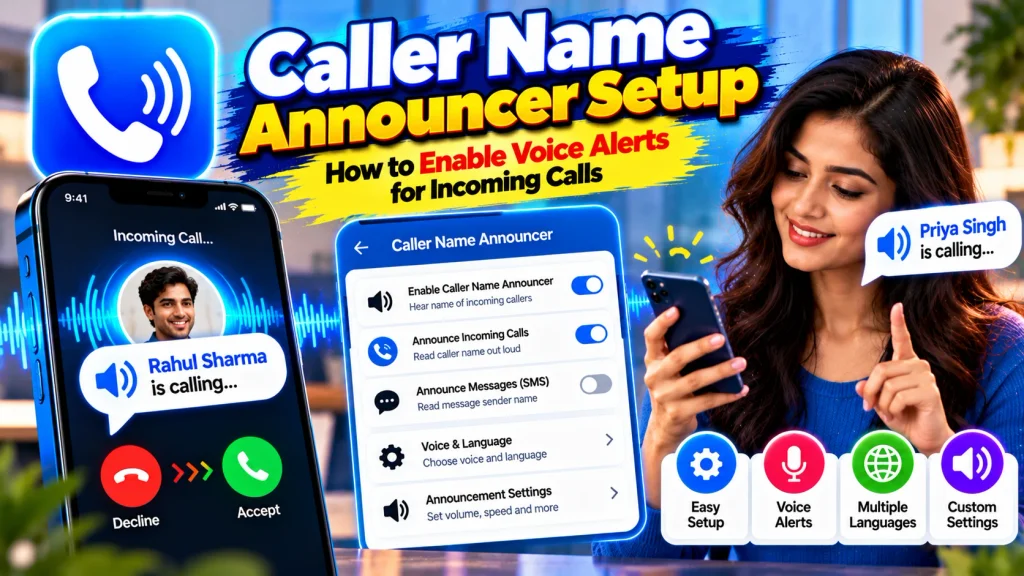
This guide explains how to enable voice alerts for incoming calls, configure caller-name announcements, manage permissions and troubleshoot common problems.
Caller Name Announcer Setup – Quick Overview
| Feature | Details |
|---|---|
| Feature | Caller Name Announcement |
| Main Purpose | Voice Alerts for Incoming Calls |
| Saved Contacts | Can Announce Available Contact Names |
| Unknown Calls | Behavior Depends on App or Device |
| Technology | Text-to-Speech |
| Setup | Built-In Feature or Supported App |
| Contacts Access | May Be Needed for Contact Names |
| Call Access | Depends on Device and App |
| Voice | Depends on Text-to-Speech Support |
| Language | Depends on Available Speech Voices |
| Headphones | Support Varies by Device |
| Bluetooth | Behavior Depends on Audio Settings |
| Volume | Managed Through Available Audio Controls |
| Android | Setup Varies by Manufacturer and Version |
| iPhone | Uses Supported iOS Call Announcement Options |
What Is Caller Name Announcer Setup?
Caller Name Announcer Setup refers to configuring your smartphone or a supported application so it can provide spoken alerts for incoming calls.
For example, if a number is saved as “Rahul Office,” the phone may announce that contact name when Rahul calls.
This allows you to recognize certain callers without immediately looking at the screen.
The exact announcement depends on the caller information available to the phone or application.
If the number is not saved, the feature may announce an unknown caller, speak the number or behave differently depending on the specific implementation.
Caller announcement should be viewed as a convenience feature rather than a guaranteed caller-identification system.
Check Your Phone for a Built-In Feature First
Before installing a separate caller-announcer app, check whether your smartphone already includes a suitable call-announcement option.
Built-in functionality can reduce the need to install another application and provide additional permissions to a third party.
The exact location varies according to:
Phone manufacturer
Android version
iOS version
Phone application
Regional settings
Device model
Search your phone settings or calling application for terms related to announcing calls or caller information.
If a suitable built-in option is available, review its settings and choose when you want announcements to occur.
How to Set Up a Caller Name Announcer App
If your device does not provide the feature you need, you may consider a reputable caller-name announcer application.
Install the app from a trusted application store.
Open the application.
Read the setup instructions.
Enable caller-name announcements.
Review any requested permissions.
Configure the available voice and announcement settings.
Save your preferences.
Test the feature using a known contact.
The exact menus vary between applications.
Avoid following an old tutorial exactly if its screens do not match your current app version.
Use the options currently provided by the application.
Enable Voice Alerts for Incoming Calls
After the required setup is complete, look for the control that enables incoming-call voice announcements.
Turn the feature on.
Depending on the app, additional settings may allow you to control when announcements occur.
For example, an app or built-in feature may provide different behavior when:
Headphones are connected.
Bluetooth audio is active.
The phone is in a particular sound mode.
The screen is locked.
The phone is being used normally.
Available options vary considerably, so do not assume every caller-announcement solution provides the same controls.
Test your selected configuration before relying on it.
Review App Permissions Carefully
A caller-announcement app may need access to specific phone functions to recognize incoming calls or match numbers with saved contacts.
The required permissions depend on the operating system and how the app is designed.
Before granting access, read the explanation shown by your phone.
Ask whether the permission makes sense for the feature.
Avoid apps that request excessive access unrelated to caller announcements without a clear reason.
You can generally review permissions later through your phone’s application settings.
Disabling a permission required for caller announcement may cause the feature to stop working.
Set Up Announcements for Saved Contacts
Caller-name announcements are particularly useful for saved contacts.
Make sure the person’s number is stored correctly in your phone.
If a contact is saved as “Anita Office,” the text-to-speech system may read that exact name when the person calls.
If the announcement is incorrect, check:
Contact spelling
Phone number
Duplicate contacts
Text-to-speech language
Available speech voice
The way a name is written can affect pronunciation.
Names containing abbreviations, unusual spelling or multiple languages may not always be pronounced naturally by the selected voice.
What Happens When an Unknown Number Calls?
Unknown-number handling depends on the app or built-in caller-announcement feature.
The system may provide a generic unknown-caller announcement, read available number information or behave in another way.
A caller-name announcer should not be confused with an unknown-number identification database.
If a number is not saved in your contacts, the app cannot automatically know the caller’s real identity unless it also uses another supported caller-identification feature.
Even when a caller name is provided, it should not be considered guaranteed proof of identity.
Be cautious with unfamiliar callers requesting money or sensitive information.
Choose a Voice for Caller Announcements
Caller announcements often rely on your phone’s text-to-speech system.
Depending on your device, you may be able to choose a voice or speech language.
Open the relevant text-to-speech or caller-announcement settings.
Review the available voices.
Select a suitable option.
Test the announcement.
Different voices can pronounce names differently.
If one voice has difficulty reading your contacts, another supported voice may produce better results.
Voice availability depends on your operating system, installed speech services and language resources.
Some voices may require additional language data to be installed.
Caller Announcer Language Settings
Users in India may want caller announcements in English, Hindi, Bengali, Tamil, Telugu, Kannada, Malayalam, Marathi or another language.
Actual support depends on the selected app and your device’s text-to-speech system.
Do not assume every language is available.
If a Bengali or Tamil name is being pronounced incorrectly, check whether the appropriate speech language is installed and selected.
The written script also matters.
A name written in English characters may be pronounced differently from the same name written in its native script.
Test important contact names after changing language settings.
Adjust Caller Announcement Volume
A caller announcement is only useful if you can hear it comfortably.
Test the feature with a known contact and adjust the relevant volume settings.
Depending on your device, spoken caller information may be affected by ringtone, media or another audio channel.
Avoid setting the volume unnecessarily high.
Very loud announcements can be uncomfortable and can expose private caller information to people around you.
Choose a level that is easy to hear without being disruptive.
If volume controls appear to have no effect, check the application’s current help information for its audio behavior.
Set Up Caller Announcements With Headphones
Voice alerts can be particularly useful while using headphones because you may hear the caller’s name without removing your phone from your pocket.
Connect your headphones and test an incoming call.
Check where the voice announcement plays.
Depending on your device, it may play through:
Connected headphones
Bluetooth audio
Phone speaker
Another configured output
If privacy is important, an option that announces calls only through headphones can be useful where supported.
However, not every device or app provides this exact setting.
Review the options currently available on your phone.
Caller Name Announcer With Bluetooth
Bluetooth earphones, headphones and compatible in-car systems may interact with call announcements differently.
Connect your Bluetooth device and test the feature in a safe environment.
If no voice alert is heard, check:
Bluetooth connection
Audio output
Call-audio settings
Announcement settings
Phone volume
App permissions
Do not repeatedly interact with your phone while driving to troubleshoot the feature.
Configure and test the system while parked safely and follow applicable road-safety rules.
Why Is Caller Name Announcer Not Working?
If you have enabled the feature but hear no voice announcement, several factors may be responsible.
First, confirm that caller announcements are enabled.
Then check the required permissions.
Make sure the contact number is saved correctly.
Increase the relevant audio volume.
Review text-to-speech settings.
Check silent or Do Not Disturb behavior.
Disconnect and reconnect headphones if necessary.
Restart the app.
Restart your phone.
Update the official app when appropriate.
If only one contact fails, check that contact’s name and number.
If every call fails, review device compatibility and setup requirements.
Caller Name Announcer on Android
Android caller-announcement setup can vary significantly by phone manufacturer and operating-system version.
Some devices may provide built-in options, while others may rely on the phone app or a third-party application.
Search the current call settings before installing additional software.
If you choose an app, use a trusted source and review its permissions.
Avoid downloading modified APK files from unknown websites.
These apps may claim to provide additional voices or premium caller-identification features but can introduce privacy and security risks.
Caller Announcements on iPhone
iPhone provides supported call-announcement functionality through iOS, with available settings depending on the current system version and connected devices.
The exact setup may differ from Android.
Review your current iPhone settings for call-announcement options and select the behavior that matches your needs.
Third-party applications on iOS operate within Apple’s system restrictions, so they may not work in exactly the same way as Android apps.
Use current device instructions instead of relying on Android-specific tutorials.
Privacy and Safety Tips
Caller announcements can expose names aloud, so consider your surroundings.
In an office, meeting, classroom or public place, other people may hear who is calling.
Use headphones where appropriate.
Choose announcement settings that suit your privacy needs.
Also remember that a spoken name does not prove the caller’s identity.
Never provide an OTP, UPI PIN, banking PIN or password simply because a familiar name is announced.
For sensitive requests, independently verify the caller through a trusted contact method.
Frequently Asked Questions (FAQ)
1. What is Caller Name Announcer Setup?
It is the process of configuring your phone or an app to provide voice alerts for incoming calls.
2. Can my phone announce saved contact names?
Yes, supported caller-announcement features can speak available names from your contacts.
3. Do I always need a separate Caller Name Announcer App?
No. Some smartphones already provide built-in call-announcement features.
4. What permissions does a caller announcer need?
Required permissions vary by app, device and operating system. Review each permission before enabling it.
5. Can I hear caller names through headphones?
Yes, on supported devices and configurations, although audio routing varies.
6. Can caller announcements work with Bluetooth?
They may work with supported Bluetooth devices depending on your phone and audio settings.
7. Can I change the announcement language?
Supported text-to-speech systems may provide different languages and voices.
8. Why is a contact name pronounced incorrectly?
Contact spelling, selected language and the text-to-speech voice can affect pronunciation.
9. Why is Caller Name Announcer not working?
Check the feature setting, permissions, volume, contacts, text-to-speech configuration and device compatibility.
10. Does an announced caller name guarantee the caller’s identity?
No. Voice announcements use available caller information and should not be treated as verified proof of identity.
Conclusion
A proper Caller Name Announcer Setup can help you hear who is calling without constantly looking at your phone screen. The feature can be useful while working, exercising, cooking, using headphones or performing other tasks.
Before installing another application, check whether your smartphone already includes a built-in call-announcement feature. If you need a third-party app, choose a reputable option from a trusted app store and carefully review its permissions.
After enabling voice alerts for incoming calls, test the feature with saved contacts. Adjust the text-to-speech language, voice and volume if necessary. You can also test how announcements work with headphones or Bluetooth devices.
Remember that caller announcements provide convenience rather than guaranteed identity verification. Unknown numbers should still be treated carefully, especially when a caller requests payments, passwords, OTPs or other sensitive information.
By configuring your Caller Name Announcer carefully and choosing appropriate privacy settings, you can make incoming calls easier to recognize while maintaining safer and more convenient phone use.
Disclaimer: Caller Name Announcer settings, voice alerts, permissions, text-to-speech languages, headphone support and unknown-caller behavior vary by smartphone, operating system, manufacturer and application. Menu names and available features can change after software updates.